Practical PDF guide
How to edit PDF text without changing the layout
PDF pages are fixed canvases, not flowing documents. Small corrections work best when you preserve coordinates, compare font metrics, and review the exported copy.
Why PDF text behaves differently from Word
A word processor stores paragraphs and recalculates line breaks when words change. A PDF normally stores drawing instructions: place these glyphs at these coordinates using this font and transformation. Replacing a short label with a longer phrase can therefore collide with the next column even when the page looks like a normal document.
The safest editing target is a focused correction such as a name, date, amount, address line, or short sentence. Rewriting several paragraphs is usually better done in the original source document and exported to PDF again.
- Keep the original PDF unchanged and export a separate edited copy.
- Prefer one line or one visual text block at a time.
- Compare the edited line with nearby text at 150-200% zoom.
Open the original and inspect its text layer
Choose the original PDF rather than a previously edited or flattened copy. After the page renders, try selecting the target line. If individual text can be selected, the file has a usable text layer. If the entire page behaves like one image, it is probably a scan and needs OCR first.
PDF Touch Up extracts text coordinates, font metadata, size, color, baseline, and available embedded font data in the browser. The PDF itself is sent to the server only when an export is requested.
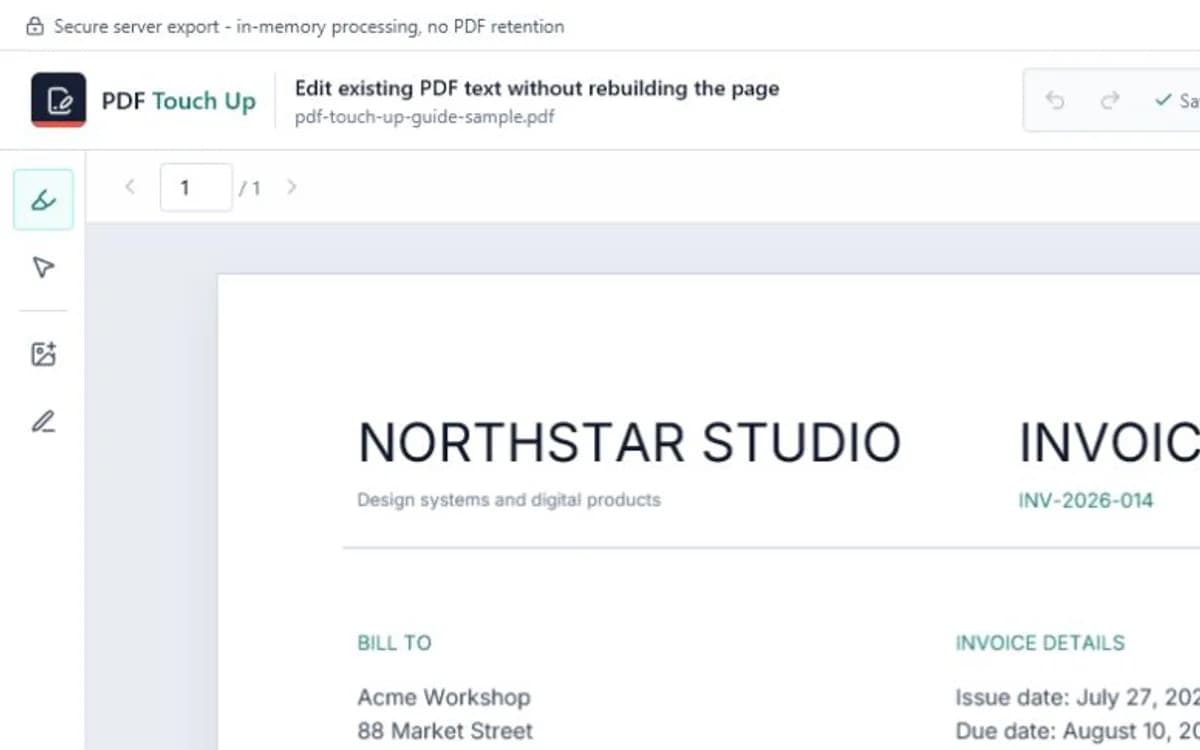
Edit the detected line and preserve its visual rhythm
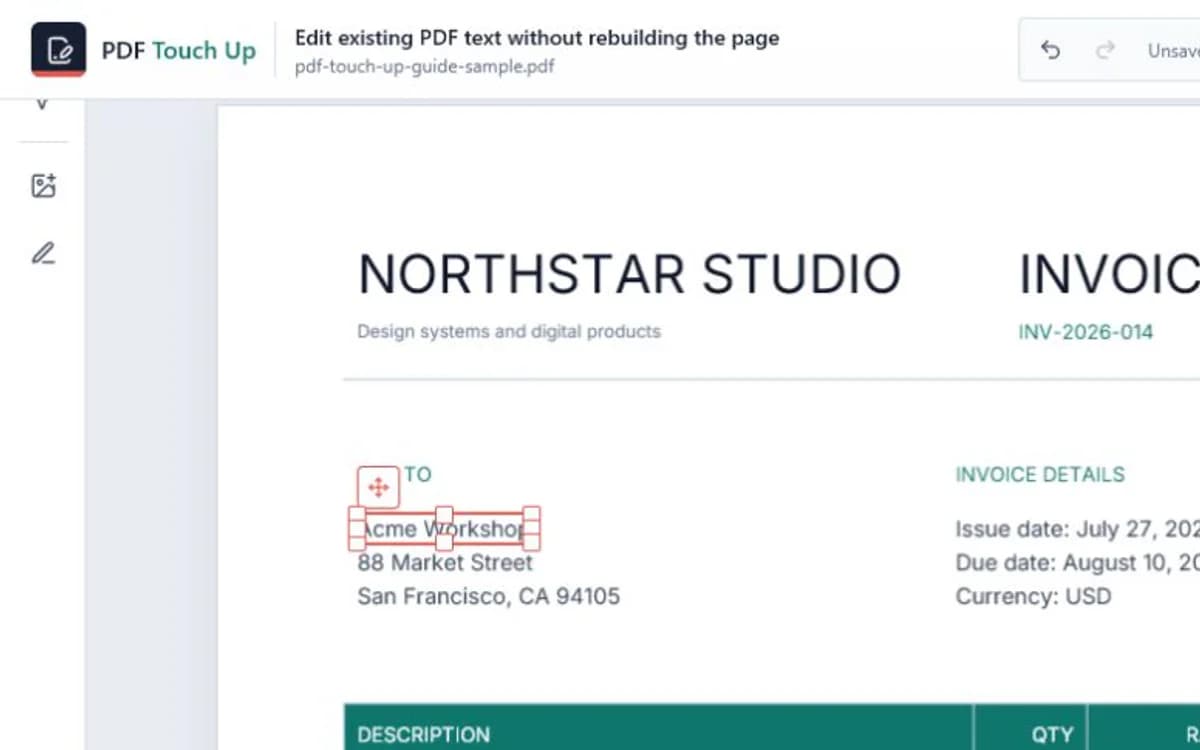
Double-click the detected text to create a direct edit at the same coordinates. Type the smallest correction that solves the problem, then compare its left edge, baseline, height, weight, and color with the surrounding text.
If the new wording is wider than the available box, enlarge the box only when there is safe whitespace. Otherwise shorten the wording or select a font with closer metrics. Do not ignore an overflow warning merely because the preview looks acceptable at a low zoom.
Review the export, not only the browser preview
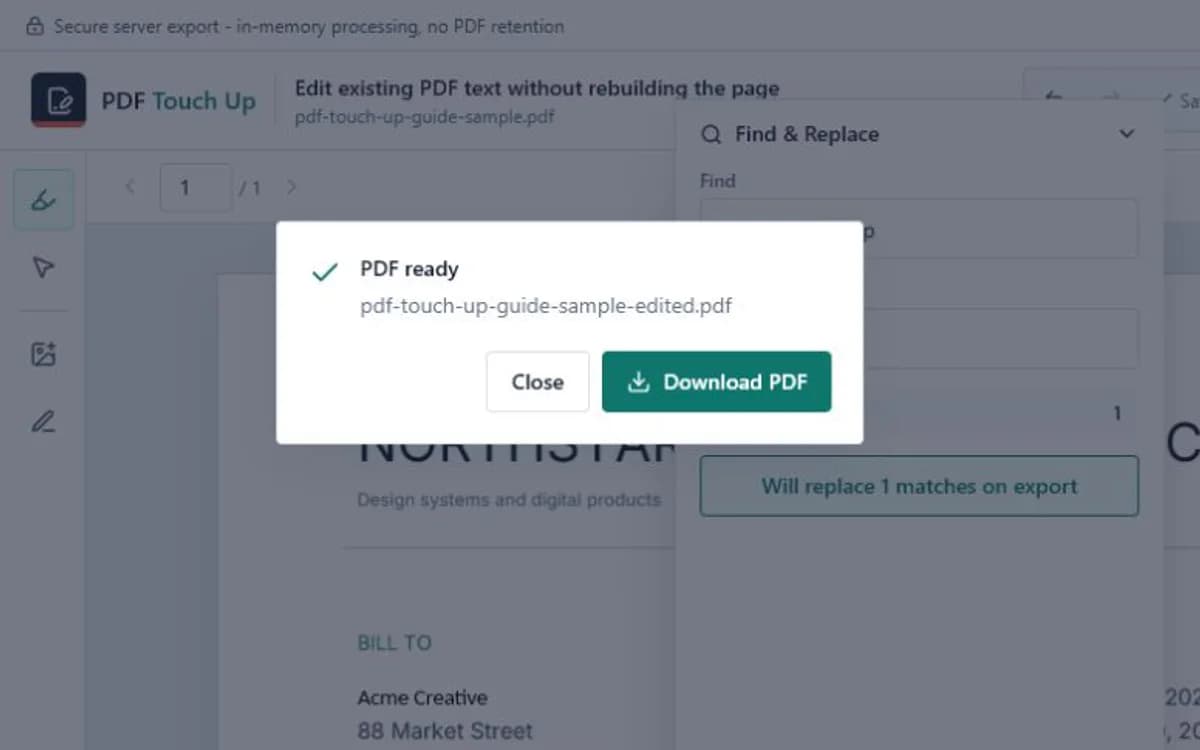
The browser and PDF export engines do not render every font identically. The exported PDF is the authoritative result. Open the downloaded copy, zoom in, search for the corrected text, and inspect neighboring lines for clipping or residual marks.
Check italic text, embedded subset fonts, rotated labels, and text near table borders especially carefully. If the original font cannot be reused safely, a compatible fallback may preserve layout while still looking slightly different.
Frequently asked questions
Can every PDF line be edited directly?
No. Image-only scans, outlined text, unsupported encodings, and some fragmented text runs may not expose a reliable editable line.
Does PDF Touch Up reflow paragraphs?
No. It preserves fixed PDF coordinates and is designed for focused corrections rather than automatic document-wide reflow.
Is the original PDF overwritten?
No. The edited result is downloaded as a separate PDF, so you can keep the source unchanged.