Practical PDF guide
How to find and replace repeated text in a PDF
A safe replacement starts with a distinctive search phrase, an expected match count, and a final review of every affected page.
Choose a search phrase that is specific enough
Searching for a common word such as “date” can match labels, body text, and footers. Prefer a complete name, full address line, unique reference, or a phrase that appears in one predictable context. Include punctuation when it is consistently present.
PDF text extraction can preserve unexpected spaces or split a visible phrase across runs. If a full phrase returns no matches, shorten it gradually while keeping enough context to avoid unrelated results.
Compare the match count with your expectation
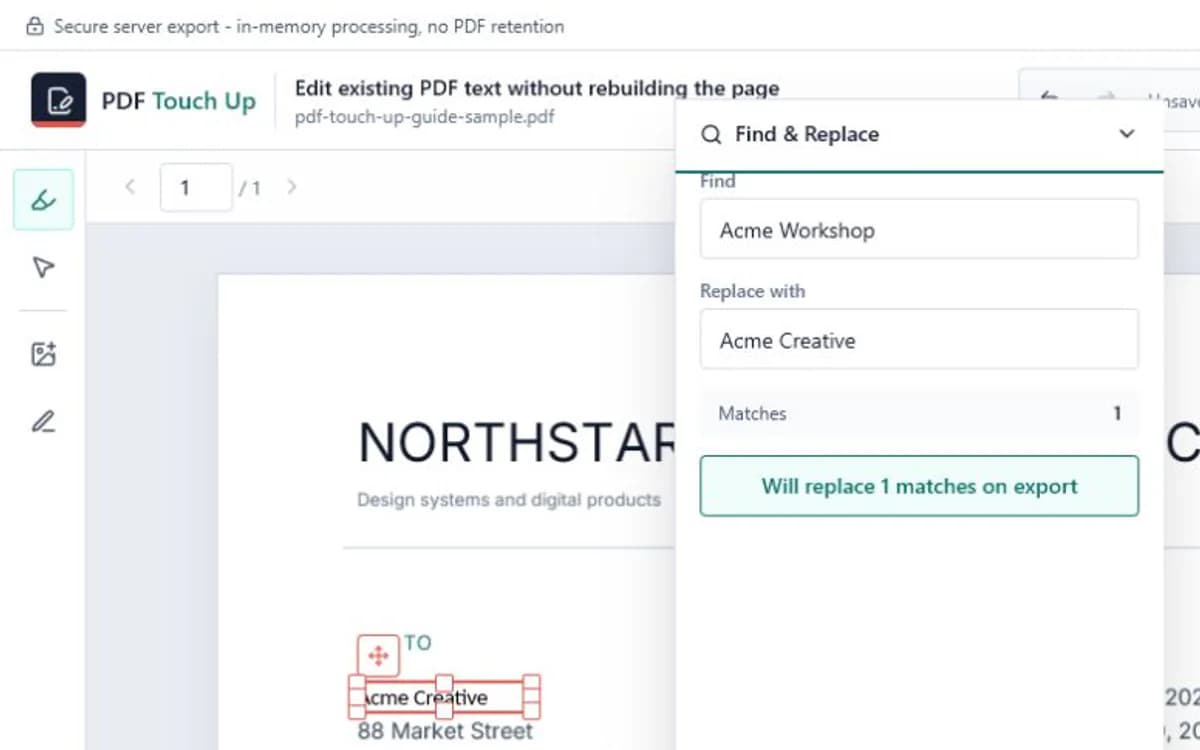
Enter the old and new text, then review the detected count before enabling replacement. If a twelve-page agreement should contain six occurrences but the editor finds four, stop and inspect the missing pages rather than assuming the search is complete.
Common reasons for missing matches include scanned pages, OCR errors, custom character maps, text split across font subsets, and small differences in capitalization or punctuation.
Keep replacement text within the original space
A replacement is applied at each detected set of coordinates. A much longer value can overlap table borders or neighboring labels. Review font, size, width, and the pages where available space is smallest.
When different occurrences use different fonts or sizes, the editor carries styling from each match when available. The same replacement can therefore be drawn with several source styles across the document.
Verify the downloaded PDF
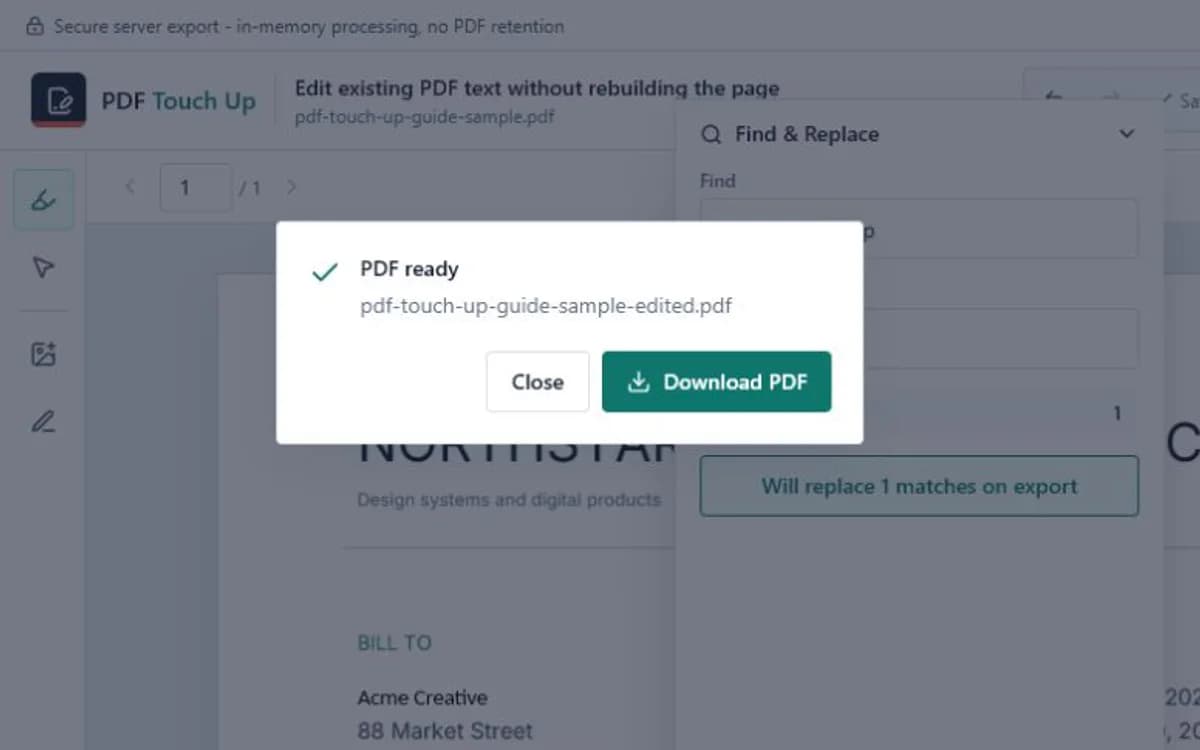
Search the exported copy for the old phrase. Any remaining occurrence needs direct review because it may be an intentional exception, an image, or a missed text run. Search for the new phrase as well and compare its count with what you approved.
- Inspect every page containing a match.
- Check tables, headers, footers, and rotated text separately.
- Keep the original and exported copies with clear filenames.
- Do not use visual replacement as secure redaction.
Frequently asked questions
Can Find & Replace search scanned pages?
Only when the scan already has a usable OCR text layer. Image pixels alone cannot be searched.
Is replacement case sensitive?
Matching follows the extracted text. Use the exact capitalization and punctuation shown in the document for the safest result.
Can I replace only one occurrence?
Use direct text editing when a single occurrence should change. Find & Replace is designed for the reviewed set of repeated matches.