Practical PDF guide
Image signature versus digital signature in a PDF
A signature that looks handwritten and a cryptographic PDF signature solve different problems. One places a visual mark; the other can provide certificate-based identity and document-integrity checks.
An image signature is a visible mark
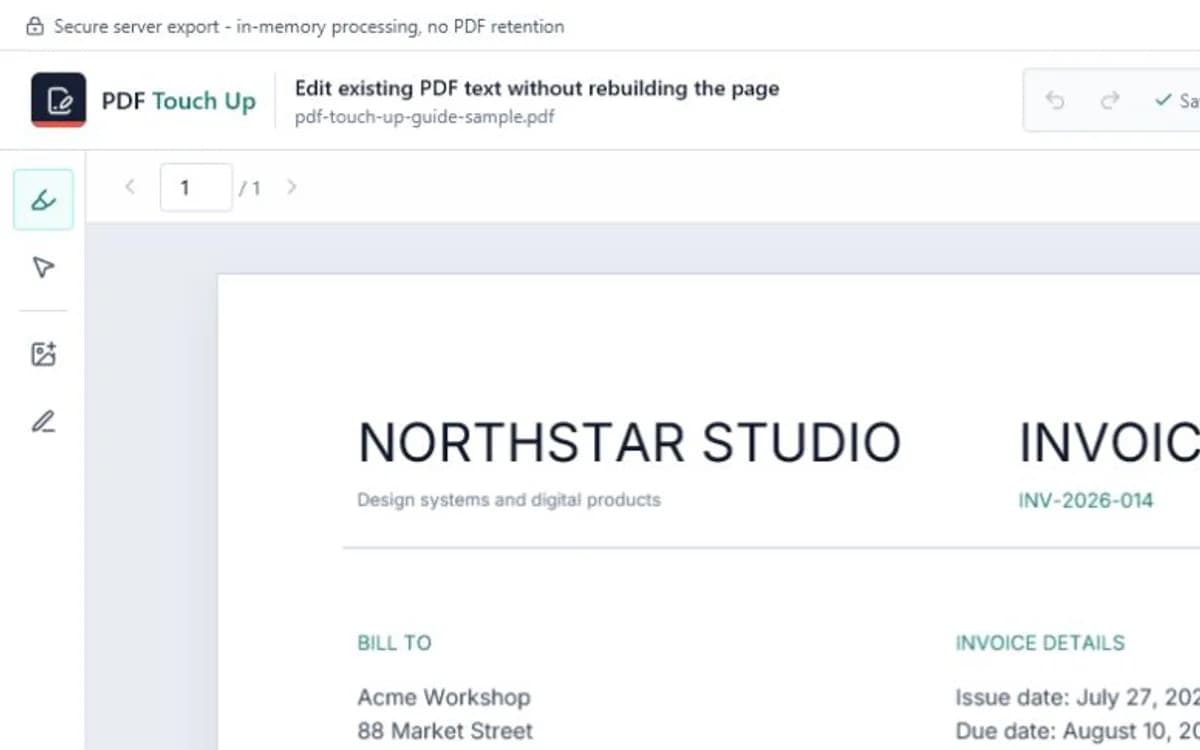
A drawn, typed, or uploaded signature is placed on the page like an image. You can move and resize it so it fits a signature line, approval box, or informal form. This is the signing method available in PDF Touch Up.
The visual mark does not independently prove who placed it, whether that person controlled a particular certificate, or whether the PDF changed after signing. A copied image can look identical to one created by the intended signer.
A digital signature uses a certificate and private key
A certificate-based digital signature calculates cryptographic data from the document and signs it with a private key. A compatible PDF reader can validate the certificate chain, identify what the certificate asserts about the signer, and report whether protected document content changed after signing.
Trust still depends on the certificate, the issuing authority, the reader configuration, and the receiving organization's policy. A valid cryptographic signature is not automatically accepted for every business or legal process.
Choose according to the recipient's requirement
Use a visual signature when the recipient only needs a visible mark and has confirmed that this method is acceptable. Use a digital-signing platform when the workflow requires signer verification, tamper detection, an audit trail, timestamps, or a certificate-based signature field.
- Ask whether a visual signature image is accepted before sending the document.
- Use the approved digital-signing service for regulated or high-value workflows.
- Keep the unsigned source and the final signed copy under clear filenames.
- Do not edit a digitally signed PDF unless the workflow explicitly allows invalidating the signature.
Review placement and document status
For a visual signature, inspect the exported PDF at normal size and high zoom. Confirm that the mark is on the correct page, is not clipped, does not cover required text, and remains legible when printed.
For a certificate-based signature, review the validation panel in a trusted PDF reader. Confirm the signer information, timestamp when required, certificate status, and whether the viewer reports later document changes.
Frequently asked questions
Does PDF Touch Up create certificate-based digital signatures?
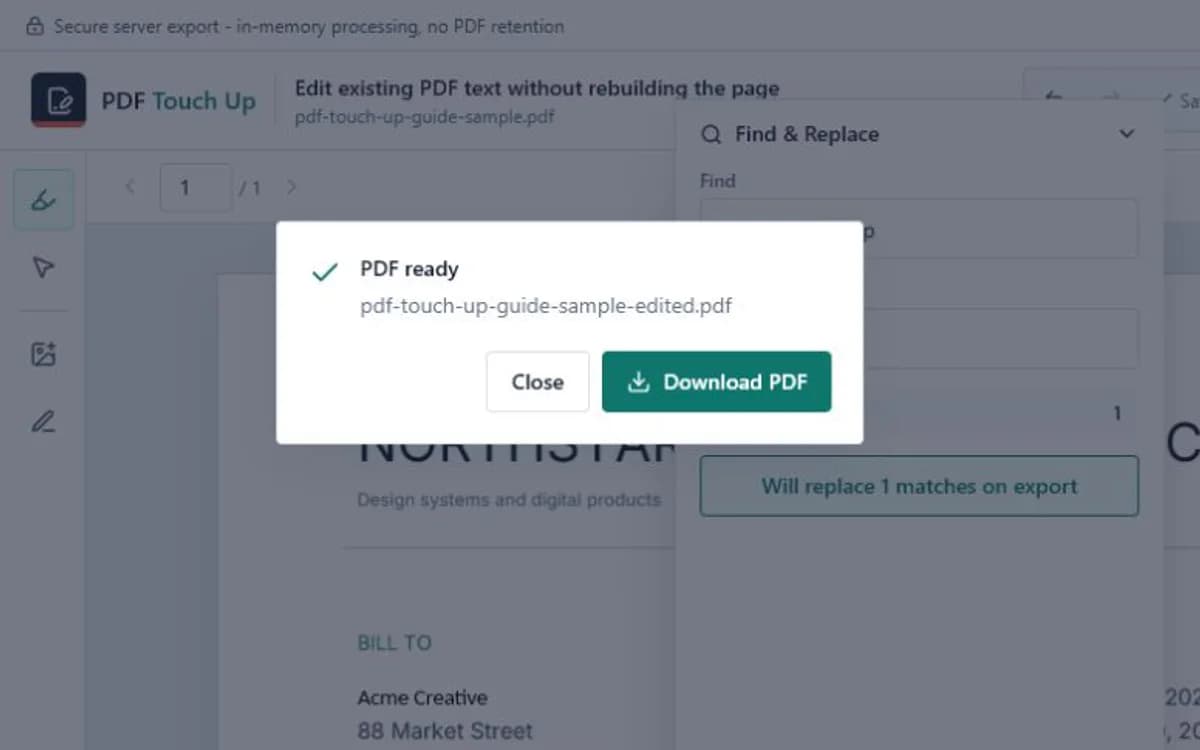
No. It adds a visual drawn or typed signature to the PDF page.
Is an image signature legally valid?
Acceptance depends on the transaction, recipient, applicable rules, and evidence around the signing process. Confirm the required method with the recipient or a qualified adviser.
Can I edit a PDF after it has a digital signature?
Some changes can invalidate or alter the signature status. Check the validation panel and follow the document owner's signing workflow before editing.