Practical PDF guide
PDF whiteout versus secure redaction
A white rectangle can hide text on screen without removing the underlying PDF data. Choose the workflow according to whether you are correcting appearance or protecting confidential information.
Whiteout changes what the page looks like
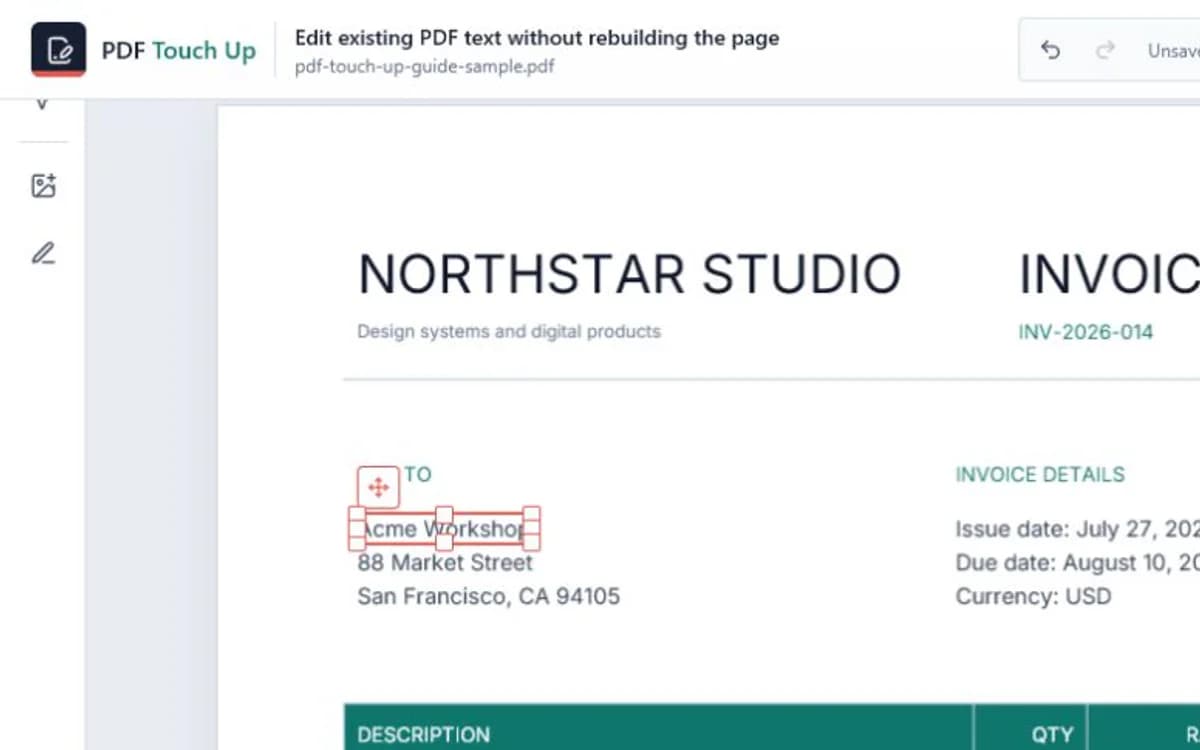
A visual whiteout places an opaque rectangle over existing page content. You can then add replacement text at the same coordinates. This is useful for a non-sensitive correction such as updating a label, covering an obsolete note, or rebuilding a small area whose source file is unavailable.
The operation resembles putting white paper over a printed line. The covered text may still remain in the PDF content stream and may still be found by search, copy and paste, accessibility tools, or forensic inspection. Flattening form fields does not automatically remove that underlying text.
Secure redaction removes the source information
A secure redaction workflow identifies the original text or image objects, removes the selected information from the document structure, and applies a visible redaction appearance. It may also need to sanitize metadata, comments, hidden layers, attachments, form values, and other places where the same information can survive.
For a scanned page, covering pixels with a new rectangle is still only a visual overlay. The sensitive pixels must be removed or replaced in the page image by software designed for redaction, followed by verification of the resulting file.
Choose the right workflow before editing
Use PDF Touch Up whiteout when the goal is a visible correction and the old content is not confidential. Use dedicated redaction and document-sanitization software when the information includes personal identifiers, financial records, legal material, credentials, or anything that must not be recoverable from the PDF.
- Visual correction: cover the old area, add replacement text, and review the exported appearance.
- Confidential removal: use a true redaction tool that deletes source objects and sanitizes hidden data.
- Uncertain requirement: treat the content as sensitive and use the stricter workflow.
Verify the file you will actually share
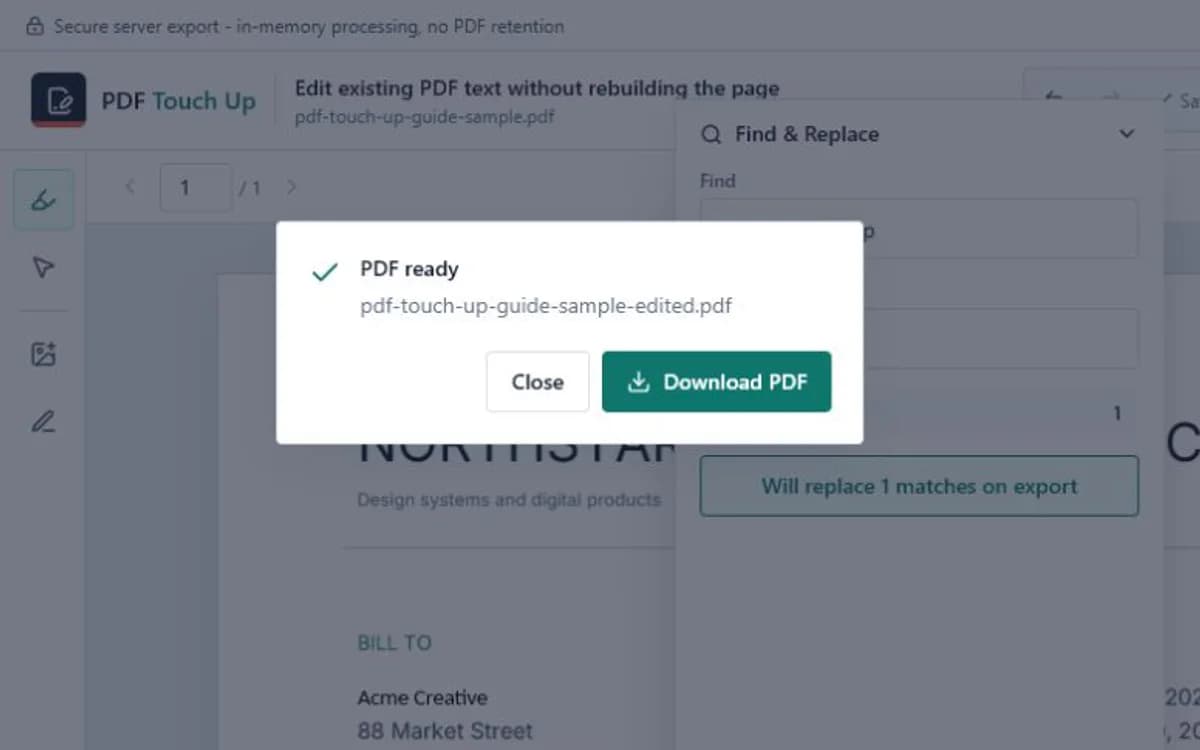
Always test the exported copy rather than relying on the browser preview. Search for the removed phrase, drag to select the covered area, copy nearby text into a plain-text editor, inspect document properties and comments, and open the file in more than one standard PDF reader.
A successful visual check alone does not prove secure removal. For high-risk documents, follow your organization's approved redaction procedure and have a second person review the final file before distribution.
Frequently asked questions
Does drawing a white box delete the text underneath?
No. It changes the visible page but the original text or image data may remain in the PDF structure.
Can I use PDF Touch Up whiteout for confidential information?
No. Use dedicated redaction and sanitization software when the original information must be removed securely.
How can I check whether a redaction worked?
Search and copy from the exported file, inspect hidden document content, and follow the verification process provided by the redaction software or your organization.